
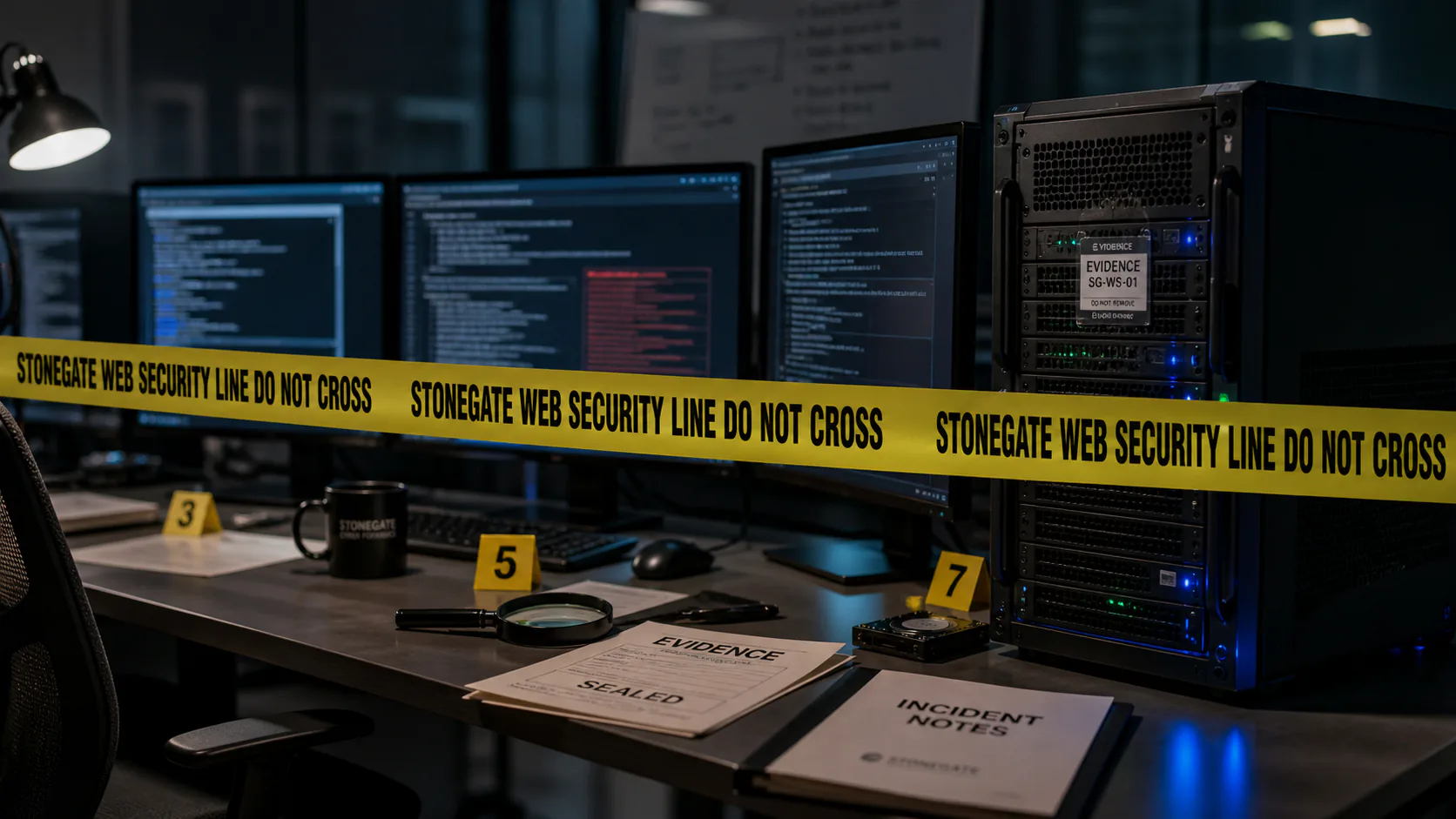
You’re poking around your site after a security scare, you open a folder you don’t usually look in, and there’s a file you don’t recognize. Maybe it’s named something like wp-config-old.php or cache-handler.php or just a string of random characters, maybe it has a weird timestamp, or maybe a security plugin flagged it.
The instinct for what you should do is universal: delete it; get rid of it; make the bad thing go away.
That instinct is the same instinct though that turns a one-week investigation into a one-month one.
This article is about why, and what to do instead. For a broader explanation of how WordPress malware works, how attackers keep access, and what a real cleanup sequence looks like, see the WordPress malware guide.
You Probably Can’t Tell Malicious From Legitimate by Looking
This is the part most owners need to hear first.
WordPress is a sprawling system. Core has thousands of files with names like wp-blog-header.php, wp-load.php, class-wp-rest-controller.php, plugins drop files in folders most owners never look a,and caching plugins create files with names that look bizarre…long random strings, deeply nested directories, files inside /wp-content/cache/ that exist only for a few minutes.
Then there’s a folder called mu-plugins (must-use plugins) that auto-loads anything inside it. Most owners don’t know it exists and a legitimate plugin can put a file there…but so can an attacker.
Moving on, a file called wp-cache.php might be malicious if it’s sitting in /wp-content/uploads/ and it’s filled with base64-encoded payloads, but the exact same filename in /wp-content/plugins/wp-super-cache/ is a perfectly normal part of a popular caching plugin.
A file with a recent modification timestamp might be a smoking gun, or it might be the result of an automatic plugin update that ran an hour ago. A file with weird-looking PHP might be obfuscated malware, or it might be a minified library that shipped with a plugin.
Am I making your head spin enough yet?
To be sure though, the point is not that you can’t ever tell, it’s more that the information you’d need to tell (what each file is supposed to be, what its legitimate version looks like, what changed and when) is rarely available at a glance.
I have seen owners delete files that turned out to be part of WordPress core, then watch their site go down with a fatal error. I have seen owners delete the visible malware while leaving four backdoors untouched, because the backdoors didn’t look “weird enough” to attract attention. The “this looks suspicious” filter is not reliable in either direction.
Deletion Destroys the Evidence You Need to Solve the Problem
When a forensic investigator looks at a compromised site, the malicious file itself is one of the most valuable things in the engagement…not because the file is interesting on its own but because of what it tells you.
The file’s contents. Malware almost always contains fingerprints: hardcoded URLs to attacker infrastructure (which can be matched against threat intelligence feeds to identify the campaign); specific code patterns that identify the malware family (Balada, SocGholish, WP-VCD) and therefore the typical entry point for that family; email addresses, attacker handles, encoded payloads that decode into clues about what the malware was trying to do. The contents are often the difference between “we found malware” and “we know exactly what happened, when, and how.”
The file’s modification timestamp. This is one of the most important data points in any investigation. The timestamp anchors the timeline: the attacker first had write access to your server at least this long ago. From there, you can walk backwards through logs, look for other files modified around the same time, and figure out the actual scope of the compromise.
The file’s ownership and permissions. Every file on your server carries small pieces of metadata that record how it got there: when it was created, what kind of program created it, and what permissions it was given. To a specialist, these are clues…a file that was clearly written by your website’s own software (the way WordPress writes a cache file or saves an uploaded image) tells a different story than a file that was clearly placed there by someone logged in over SFTP. Files that look out of place for their location (a script in a folder that should only contain images, a file with permissions that let anyone modify it) stand out for the same reason. None of this is visible at a glance, and none of it is recoverable once the file is gone.
The file’s path. Where the attacker chose to put something is information. A backdoor in /wp-content/uploads/2023/04/ suggests they exploited a file-upload vulnerability dated to that month. A backdoor in mu-plugins/ suggests they had filesystem write access broad enough to drop into a folder most plugins can’t reach.
A specialist looking at “this file is here, this is its name, this is its content, this is its timestamp, this is its owner” can reconstruct most of an incident in an afternoon. A specialist looking at “there used to be a file here, I don’t remember the name, I deleted it yesterday” is starting from scratch, and that gap is often the difference between a thorough cleanup and one that misses things.
You Lose the Timeline, Which Means You Lose Your Backups
Every WordPress incident I’ve worked has the same first question: when did this start?
The answer determines almost everything that follows. If the compromise started two weeks ago, your monthly backup from before then is probably clean and restorable. If it started two years ago (and surprisingly often, it has) every backup you have is also infected, and “restore from backup” is not a real option.
The way you answer that question is through evidence: file timestamps, database row creation dates, log entries showing the first unauthorized access, new admin user creation dates, cron jobs added on a specific date, plugin upload timestamps, etc.
Delete the suspicious file before that work happens, and you’ve removed one of the anchors. Delete several files, and the timeline collapses. Now you don’t know whether your January backup is clean or infected, which means you can’t safely restore, which means cleanup gets harder and slower.
The owners who hand me a site with a clear “here’s everything I found, here’s what I touched, here’s what I left alone” hand-off get faster, more thorough investigations than the ones who arrive saying “I deleted a bunch of stuff but the problem came back.”
You Miss the Persistence Mechanism
A WordPress compromise has three layers: the visible payload (the redirect, the spam page, the skimmer), the persistence mechanism (the backdoor or scheduled task that re-deploys the payload if it’s removed), and the entry point (the vulnerability or stolen credential that let the attacker in originally).
A complete cleanup addresses all three. Deleting only the visible payload is not a cleanup and within hours or days the persistence mechanism rewrites what you deleted.
The reason this matters here is that the visible payload is often the clue to the persistence mechanism. The malicious file you found tells you what to look for next: which scheduled tasks are running, which user accounts had write access at that timestamp, which plugins were active when the file was created, which other files share its ownership and naming pattern.
Delete the clue, and you’ve made the next step harder. You’ve also created a worse situation than not finding anything at all, because now the attacker knows you’re looking which leads to the next problem.
Deletion Can Alert the Attacker
If a compromise is recent or active, the attacker may still be paying attention. Many web shells (the small files attackers use to maintain access) include logging that pings the attacker when something changes. Some attackers run periodic checks to confirm their backdoors are still in place.
Make a visible change (ie if you delete a file, lock out a user account, change a password, etc) and you may prompt the attacker to escalate. They could drop additional payloads,exfiltrate data they hadn’t yet bothered to take, or even burn the site (deface it, destroy data) because they’ve decided it’s no longer useful for stealth operations. In e-commerce cases, they may try to extract whatever payment data they can before they lose access.
The right move in an active compromise is to identify everything first, then close all exits at once: credentials rotated, sessions invalidated, backdoors removed, vulnerabilities patched, all in a coordinated sequence. Owners who delete one suspicious file at a time, in a panic, can end up in an attrition fight with someone who is paying closer attention than they are.
To be sure, this isn’t a reason to do nothing, rather, it’s a reason to plan the response before executing it.
A Quick Word About Passwords
The cousin instinct to “delete the file” is “change all the passwords.” This is well-meaning, but the same logic applies.
Changing your WordPress admin password is necessary, but on its own it doesn’t lock out an attacker who has a valid session cookie, an API key, an FTP credential, a database backdoor, or a malicious plugin that creates new admin users on the fly. You’ll feel like you’ve taken action; the attacker on the other hand won’t even care.
Credential rotation is part of cleanup, but it has to happen as a coordinated sweep — every credential touching the site, all at once, after the backdoors are closed. If you do it piecemeal before you understand the scope of the access, it’s just one more action that alerts the attacker without locking them out.
What to Do Instead
If you’ve found something suspicious, here is the sequence that protects your evidence and your investigation:
Evidence-first sequence
Don't modify it
Don't delete it, don't rename it, don't open it in an editor that might change its modification time. Some editors update the file's timestamp just by opening it, depending on settings.
Capture what you can see
Take a screenshot of the file in your file manager or SFTP client, including the path, filename, size, and timestamp. If you have shell access, run ls -la on the parent folder and screenshot or copy that output. The goal is to record what was there in case anything happens to it later.
Note the context
Where did you find it? What were you doing when you found it? What made you suspicious? Was it flagged by a security plugin, by your hosting provider, by something a customer said, by Google Search Console? Write it down.
Don't run a cleanup plugin yet
Most security plugins have a "fix it" button. In a real compromise, that button often deletes evidence and misses persistence. Run scans for information, not for action.
If visitors are at risk, take it offline the right way
If the site is redirecting customers to malware, serving phishing, or running a payment skimmer, the priority is to stop ongoing harm. Use a maintenance page or change the document root to a static placeholder. Do not delete files until the symptom stops.
Save logs before they rotate
Web server access logs, error logs, and any application logs you have access to are extremely valuable in an investigation. Most hosting providers rotate these every few days and discard old ones. Download what you have.
Engage a specialist
A real incident response engagement starts with the evidence you've preserved. The more you have, the faster the work goes and the more thorough the result.
The Mindset Shift
The most useful frame for a moment of discovery is not “I have to make this go away” but “I have a piece of information about what happened to my site.”
What’s there, where it is, when it appeared is, who put it there…that’s all information, and deleting it converts all of that into nothing.
Owners who treat suspicious findings as evidence rather than emergencies tend to come out of incidents faster, with more thorough cleanups, and without the haunted feeling that the same problem will come back next month. The instinct to delete is understandable; after all, nobody wants something dirty on their server, but…the discipline to preserve it long enough to understand it is what separates a clean recovery from a recurring nightmare.
If you’ve found something on your site you don’t recognize, and you’d like a second opinion before you touch it, get in touch and I’ll take a look. The work is almost always easier when the evidence is intact.
Written by Stonegate Web Security. If you’ve found something on your site you don’t recognize, get in touch before you touch it.
Frequently Asked Questions
eval() calls, characters that look like deliberate nonsense); ownership by www-data or your web server user when other files in that folder are owned by your SFTP user. Note what you see, don’t act on it.Related Reading
-
The Complete WordPress Malware Guide
Learn how WordPress compromises work, what cleanup should include, and why evidence matters before anything is deleted. -
Why Is My WordPress Site Redirecting to Another Website?
If your site is sending visitors somewhere else, the problem is rarely a single file. -
Google Says My Website Has Harmful Content — What Should I Do?
What Google security warnings actually mean, and how to clear them in the right order. -
Think You're Too Small to Get Hacked? Think Again.
Build trust by showing your visitors you take security seriously.