
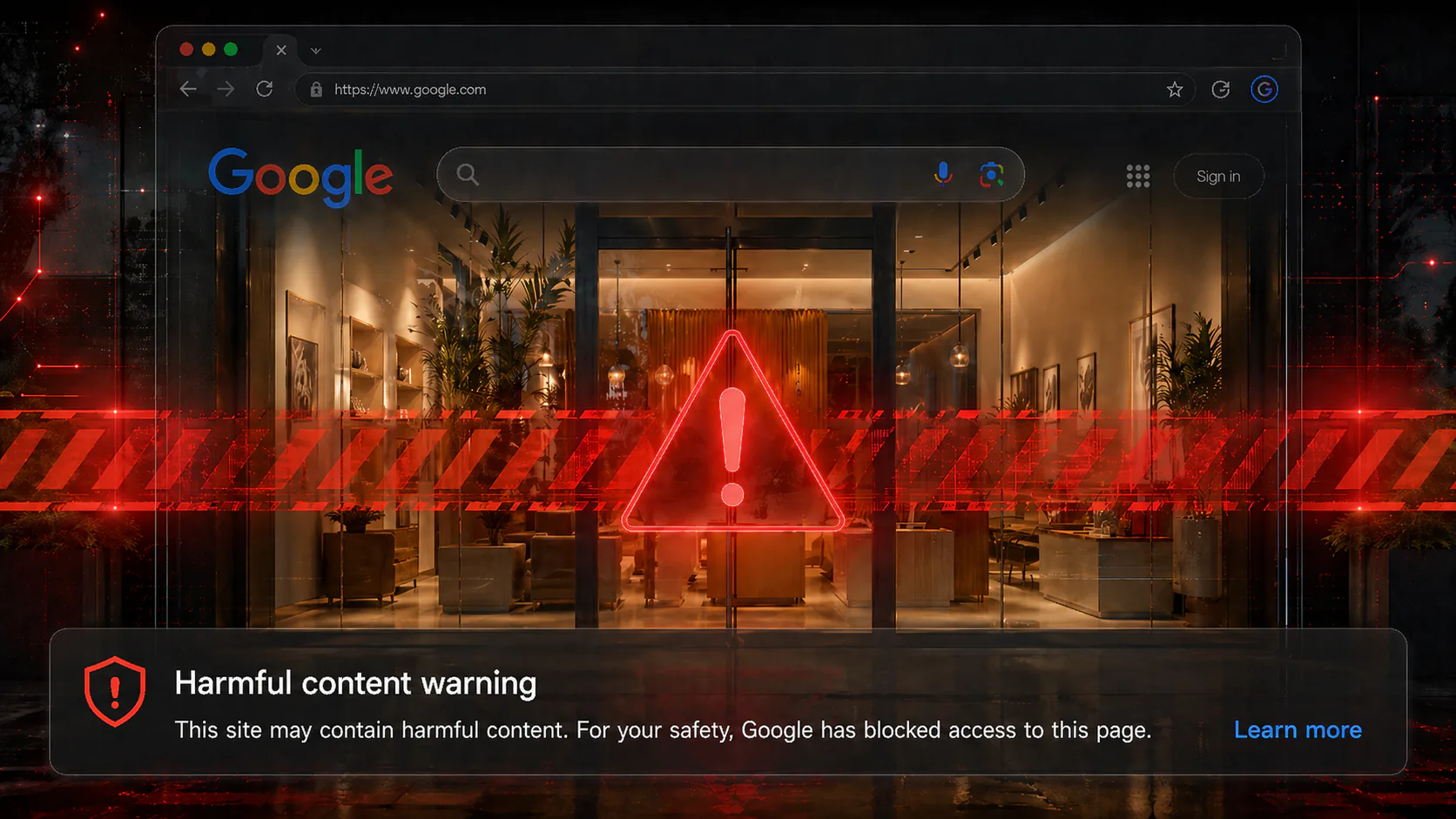
If you opened this page, something has gone wrong with how Google sees your website. Maybe you got an alert in Search Console, maybe a customer told you their browser threw a red warning when they tried to visit, maybe your Google Ads account just got suspended for “malicious or unwanted software.”, or perhaps you searched for your own business and saw “This site may be hacked” under the result.
Whatever brought you here, know this first: the situation is recoverable, but…it has to be handled in the right order. Trying to make the warning go away before the underlying problem is fully resolved is one of the most common ways small business owners turn a one-week problem into a two-month problem.
This article explains what these warnings actually mean, why they appear, why cleanup alone isn’t enough to remove them, and what a thorough recovery looks like. If the flagged site runs WordPress, the broader WordPress malware guide is the better starting point for understanding how the compromise happened and why cleanup has to include the entry point and persistence.
The Different Warnings Google Can Show You
Not all Google warnings are the same, and the wording matters. The category determines what Google found, where it surfaces, and what’s required to clear it.
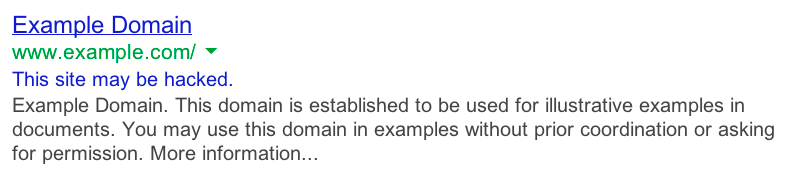
“This site may be hacked”
This appears as a small grey line of text under your search result. It doesn’t block visitors (they can still click through) but it crushes click-through rates because nobody wants to click a result with that warning attached. It typically means Google found injected spam content on your site (hidden gambling pages, pharmacy spam, doorway pages, foreign-language casino articles) but hasn’t classified the content as actively dangerous.
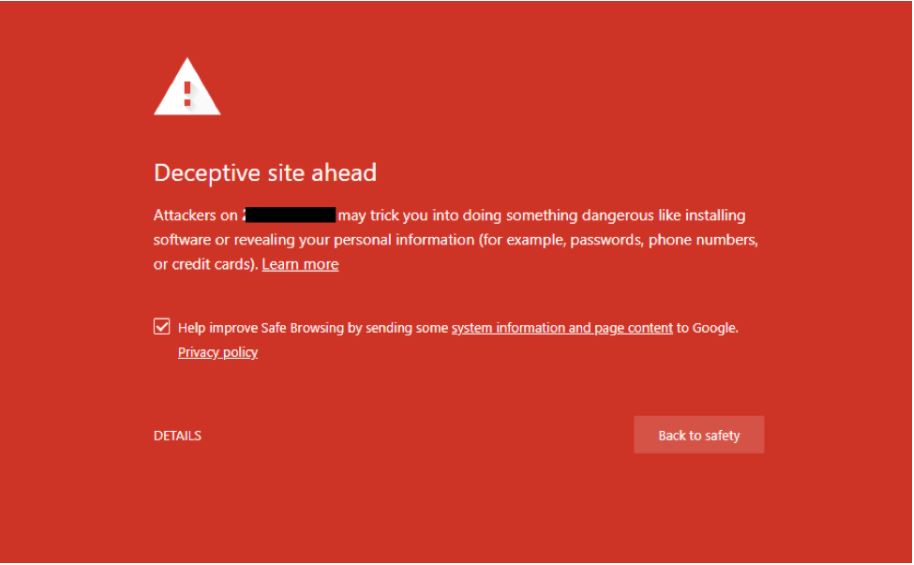
“Deceptive site ahead” / “This site may harm your computer”
The full red interstitial page in Chrome, Firefox, and Safari. This is the Safe Browsing warning, and it’s a much bigger deal. Visitors have to click past a scary full-screen warning to reach your site, and most won’t. This usually means Google has classified your site as serving malware, hosting phishing content, or redirecting to dangerous destinations.
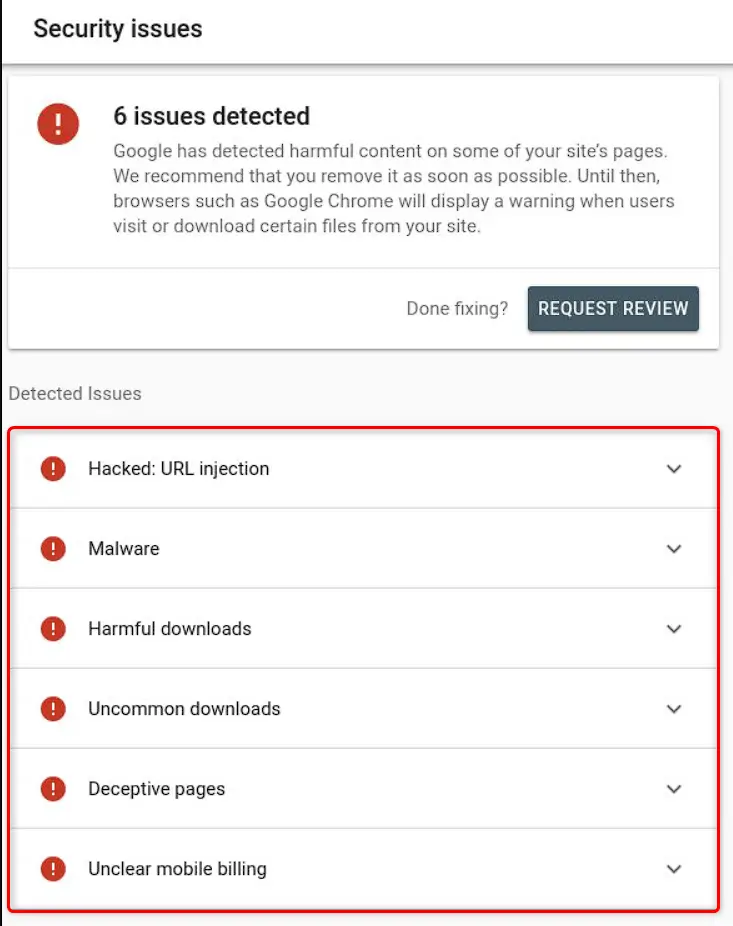
Search Console Security Issues
If you’ve verified your domain in Google Search Console, the Security Issues panel is where Google tells you specifically what it found. Categories include hacked content (spam injection, content injection, URL injection), malware and unwanted software, social engineering (phishing or deceptive content), and harmful downloads. Each category has different remediation steps and a different review process.
Google Ads disapprovals and account suspensions
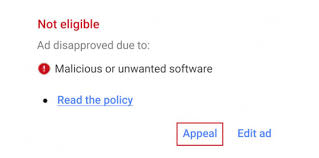
Google Ads has its own malware detection, separate from Search Console. An ad or your entire account can be suspended for “compromised site” or “malicious or unwanted software” without any visible warning appearing in search results yet. Ads is often the first place an infection gets caught, because the system inspects landing pages aggressively before serving traffic. Separate from malware, Google Ads accounts can also become the target of direct takeover; this Google Ads MCC account-takeover case study shows how that looks in the logs.
Email deliverability problems
Less obvious, but important: Google’s Safe Browsing list also feeds Gmail’s spam filter. If your domain is flagged for hosting harmful content, emails sent from that domain (even perfectly authenticated emails with valid SPF, DKIM, and DMARC) can be filtered to spam or rejected outright. I’ve worked cases where a client’s email deliverability collapse turned out to be a downstream effect of a Safe Browsing flag they didn’t know they had. Their domain was clean from an email-authentication perspective, but Google had blacklisted it for entirely different reasons.
Other browser-level warnings
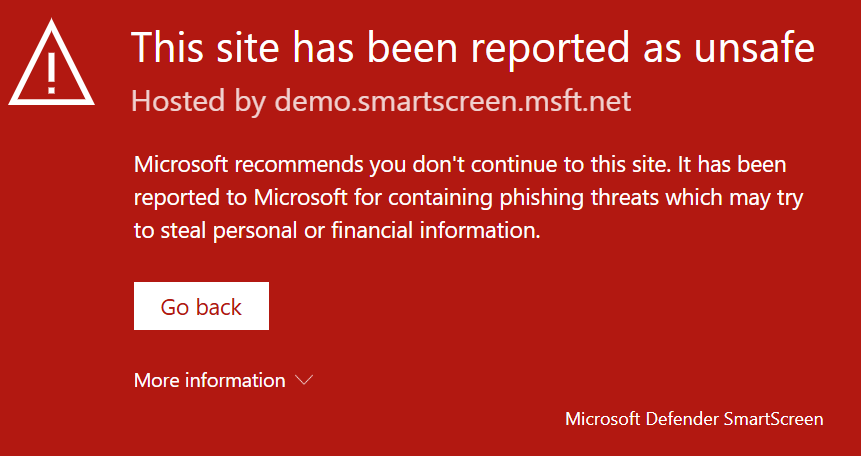
Microsoft Edge uses SmartScreen, which has its own list. Some antivirus products and corporate firewalls maintain their own blocklists. A site can clear Google and still be blocked by one of these. Cleanup work needs to consider all of them, not just Google.
What Google Is Actually Detecting
Understanding what gets a site flagged helps you understand why a warning appears and what cleanup needs to address.
Injected SEO spam. Hidden pages added to your site to rank in Google for terms like online casinos, replica handbags, or counterfeit drugs. These pages are often invisible from your normal site navigation but live at URLs like yoursite.com/wp-content/cache/casino-promo-2026/. They redirect search-engine visitors to the attacker’s affiliate links. Google indexes them, sees the spam, and flags your domain.
Malware on pages. Code on your pages that downloads or runs malicious software on visitors’ computers. This can be obfuscated JavaScript, malicious ads, or files served from your domain that turn out to be infected.
Phishing pages. Attackers sometimes use a compromised business website as a free hosting platform for phishing kits. They upload a fake Microsoft login page, a fake bank login, or a fake DocuSign portal under a path on your site, then send phishing emails linking to it. Your domain catches the blame.
Malicious redirects. As covered in detail in our WordPress redirect article, redirect malware sends visitors from your site to attacker infrastructure. Google detects redirects to known-bad destinations and flags accordingly.
Cryptominers and unwanted software. Code that uses visitors’ browsers to mine cryptocurrency, or pushes unwanted browser extensions. Less common today but still seen.
Social engineering content. Fake CAPTCHA pages, fake “your computer is infected” warnings, fake browser update prompts. Google is increasingly aggressive about these because they’re delivery vectors for infostealer malware.
The pattern that’s grown most common in the past few years is the slow-burn SEO spam injection: an attacker compromises a site, doesn’t visibly damage anything, and quietly uploads hundreds or thousands of spam URLs over weeks or months. The owner notices nothing until Google flags the domain, at which point the spam content has already been indexed, the domain reputation is damaged, and the cleanup has to address content the owner never knew existed.
Why You Might Not See It
This is the part that throws most owners. You log in, look around, and the site seems fine. How can Google be saying it’s hacked?
Several reasons:
The injected pages aren’t linked from your menu. Spam URLs are deliberately hidden from the navigation. They exist for search engines to index, not for human visitors to find. Unless you specifically search Google for site:yourdomain.com and scroll through every result, you won’t see them.
The malicious behavior only fires for some visitors. Same logic as targeted redirects: search engine traffic, mobile traffic, or first-time visitors get hit with the bad behavior, while you (logged in, on a familiar device, visiting directly) see a clean site.
The phishing kit is buried in a path you’d never check. A fake login page sitting at yoursite.com/wp-content/uploads/2024/03/secure/. You don’t browse uploads folders.
The compromise has been there longer than you’d guess. I worked an investigation recently for a real estate agent whose site had been actively compromised for over two years before anyone noticed. The attackers were using his site as infrastructure for a different purpose entirely while the agent’s day-to-day experience of his own site was completely normal. The Safe Browsing flag, when it eventually came, was based on activity he had never seen.
This is why “I don’t see anything wrong” isn’t a useful diagnostic. Google sees the public internet from a different vantage point than you do.
The Three-Step Recovery (and Why Skipping Any One Adds Weeks)
A Google warning has three states, and getting from “flagged” back to “trusted” requires all three to happen in order.
-
01
The site has to actually be clean.
All malicious content removed. All backdoors closed. All compromised credentials rotated. Vulnerabilities that allowed the attack patched. This is the part most people focus on.
-
02
The site has to stay clean long enough for Google to verify.
Google's automated systems re-crawl flagged domains. If they find the same indicators on a follow-up crawl, even residual ones, the warning persists and your review request gets declined.
-
03
A review has to be requested through Search Console.
Google does not automatically remove warnings even after the site is clean. You have to submit a review request through the Security Issues panel in Search Console. Each category has its own request flow.
The mistake most owners make is collapsing these steps. They (or their developer) clean up some visible problems, immediately hit “Request Review” in Search Console, and then wait. Google re-crawls, finds something the cleanup missed, denies the review, and now the domain is in a worse state because failed reviews are tracked, and repeat failures slow down future reviews.
The right cadence is to clean thoroughly, verify nothing is regenerating, then request the review. A failed review costs you a week, but a successful one is over in a few days.
Why Cleanup Alone Doesn’t Lift the Warning
Even after every malicious file is gone, the warning may remain for several reasons:
-
Google hasn’t recrawled yet. Removing the bad content from your server doesn’t immediately tell Google. The flag persists until a crawler returns and confirms the change, then a review processes the result.
-
Cached results still show the old content. Google’s index lags reality by hours to days. Spam pages indexed last week are still in the index this week, even if you deleted the underlying files.
-
The malicious content has external signals. If the spam pages got linked to from other compromised sites (which is how spam-SEO networks work), those backlinks keep pointing at your domain. The pages may 404, but the signal is there.
-
A piece of the infection is regenerating. This is the most common reason a “cleaned” site stays flagged. A backdoor or scheduled task is rewriting the malicious content faster than the cleanup can keep up, as shown in this WordPress reinfection case study.
-
The domain’s Safe Browsing reputation has its own decay curve. Even after the warning lifts, downstream systems (Gmail spam filter, ad networks, corporate firewalls) take longer to update. Sometimes the site is clean and the problem is a reputation verdict, not malware, like this Shopify antivirus blacklist false positive.
A cleanup that doesn’t account for these realities ends with the owner staring at a still-warning Search Console panel days after they thought the problem was solved.
When to Call a Specialist Instead of Your Web Developer or Host
A Google security warning is a different kind of problem than a broken contact form or a slow page. It’s a trust problem with an external authority that has its own opaque decision-making process. The skills involved are forensic, not constructional.
Call a specialist when:
-
The warning persists after a cleanup attempt
-
You don’t know how the attacker got in
-
The Search Console issue type is malware, social engineering, or harmful downloads (these are higher-severity categories)
-
Your Google Ads account has been suspended in connection with the issue
-
Your email deliverability has degraded around the same time
-
You have e-commerce, lead generation, or ad spend dependent on the domain
-
The site has been flagged before and the problem keeps coming back
-
Your hosting provider has notified you of suspicious activity
-
The site has more than a handful of pages indexed, making “look through everything manually” impractical
A web developer is good at building, and a hosting support agent is good at servers, but neither role typically includes forensic investigation of how a site was compromised, what the attacker did while they had access, what they may have left behind, and how to communicate that cleanup credibly to Google.
What Stonegate Web Security Does During a Google Warning Investigation
Every case is different, but the typical work covers:
01
Identify What Google Found
- Review the specific Search Console issue details and the timeline of when the warning appeared.
- Pull a complete inventory of indexed URLs using
site:searches and Search Console URL data. - Identify spam pages, fake login pages, harmful downloads, or injected content the owner doesn't recognize.
02
Find the Compromise
- Review all WordPress admin users for unauthorized accounts, including users hidden from the admin panel.
- Audit every plugin and theme, including hidden mu-plugins and code that doesn't match its public source.
- Search the filesystem for backdoors, web shells, file upload scripts, and reconnaissance tools.
03
Reconstruct the Timeline
- Review the database for injected posts, modified options, suspicious user roles, and orphaned content.
- Review access and error logs to see when the first compromise happened and whether the attacker is still active.
- Check whether the same attacker accessed other sites or services connected to the hosting account or credentials.
04
Clear the Warning Properly
- Verify cleanup by re-running the inventory and confirming no regeneration over a 24–72 hour observation window.
- Submit the Search Console review request with appropriate documentation.
- Monitor downstream reputation effects across Safe Browsing, Gmail, and ad networks until the domain is fully restored.
- Harden the site against the same class of attack so the warning doesn't return.
The investigation often surfaces things that change the scope of the engagement. A site flagged for SEO spam may also turn out to have unauthorized admin users with active sessions, or a payment skimmer on a checkout page, or a phishing kit hosted on a path nobody had checked. The Search Console warning is sometimes the visible symptom of a much deeper compromise, and a thorough investigation finds that out before, not after, the review is submitted.
What You Can Check Yourself in the Next Ten Minutes
Before deciding what to do, a few things worth confirming on your own:
- Search Console → Security Issues. Log into Google Search Console. The Security Issues panel will tell you the specific category, sample URLs, and when the issue was detected.
- Safe Browsing transparency report. Visit
https://transparencyreport.google.com/safe-browsing/searchand search your domain. This tells you what Google’s public-facing system says about your site right now. - The
site:operator. Search Google forsite:yourdomain.com casinoorsite:yourdomain.com viagraorsite:yourdomain.com poker. If results come back, you have injected SEO spam, the same class of visible damage seen in The Keys Were Never Taken Back and The Site That Kept Reinfecting Itself. - Admin users. Open
/wp-admin/users.phpand review every administrator account. Anyone you don’t recognize? Anyone with an email address on a domain that isn’t yours? - Gmail deliverability. If you use Gmail or Google Workspace for business email, check whether your recent sends are landing in spam — sometimes Safe Browsing flags surface here before they surface visibly. While you’re there, confirm your Google Workspace admin alerts are routed to a monitored destination.
- Google Ads. If you advertise, check the account status panel for any policy violations or disapproved ads.
Save screenshots and timestamps of what you find. They help reconstruct the timeline.
The Business Impact
A Google security warning is one of the few website problems that hits multiple parts of a business at once.
Direct traffic loss. Click-through rates on flagged search results collapse. Even a "this site may be hacked" footer (the mildest warning) can cut clicks by half or more. The full red interstitial cuts them by far more than that.
Ad spend disruption. A suspended Google Ads account stops your lead flow immediately, and reinstating an account flagged for malicious content is a slow, frustrating process that can take weeks even after the underlying issue is resolved.
Email deliverability damage. As mentioned, Safe Browsing reputation feeds Gmail filtering. A flagged domain can see invoices, sales emails, and customer replies all start landing in spam, which compounds revenue impact.
SEO recovery time. Even after the warning is lifted, search rankings don't snap back instantly. Pages that were de-ranked during the flag period have to re-earn their position. For some sites, recovery takes a few weeks. For competitive niches, it can take months.
Customer trust. A customer who saw "Deceptive site ahead" when trying to reach you doesn't always come back. They almost certainly tell other people. For service businesses where reputation is the product, this is the most expensive part of the incident.
Insurance and compliance. Sites that handle payment data, health data, or other regulated information may have notification obligations that get triggered when Google flags the site, regardless of what the actual compromise turns out to be.
The cost of a Google warning is rarely the cleanup fee. It’s the four to twelve weeks of degraded traffic, suspended ads, broken email, and damaged trust that follow.
When to Get Help
If your site is currently flagged and you have any business activity tied to the domain, the question isn’t whether to act — it’s how to act in a way that resolves the warning the first time, instead of submitting a review that gets denied and adds another week.
Stonegate Web Security handles Google security warning cases as full investigations: identify what Google found, find everything else that’s wrong while we’re in there, clean it thoroughly, harden the site so the same class of attack can’t repeat, then handle the Search Console review on your behalf. If you’d like to talk through what’s happening with your site, get in touch and I’ll take a look.
You can also read more about WordPress malware removal, website security hardening, website security checkups, and ongoing security monitoring.
Frequently Asked Questions
Written by Stonegate Web Security. If your site is flagged right now and you’d like a second opinion, get in touch.
Related Reading
-
The Complete WordPress Malware Guide
A working guide to how WordPress compromises happen, why scanner-only cleanup fails, and what a real recovery sequence looks like. -
Why Is My WordPress Site Redirecting to Another Website?
Redirect malware often triggers Google security warnings while hiding from site owners. -
Google Visibility That Lasts: Security Is SEO
See why malware warnings, downtime, and trust signals directly affect search visibility. -
The Rise of Automated Attacks: Why Small Businesses Are Prime Targets
Automated bots constantly scan small sites for weak plugins, credentials, and backdoors.