
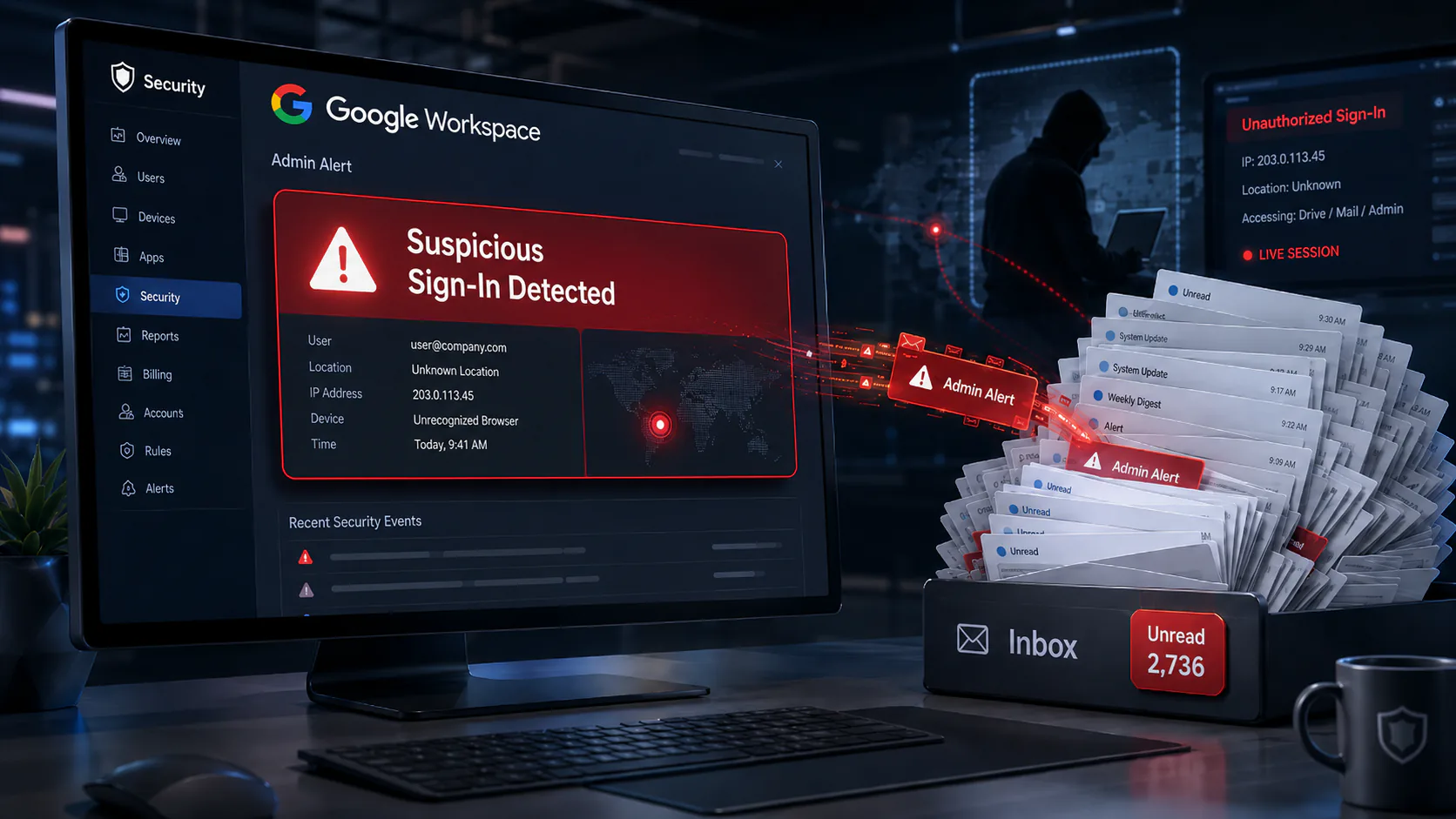
There’s a failure mode I see often enough that it’s worth writing down because it doesn’t look like a failure until you trace it backwards. It’s when the security tool worked (it detected the bad thing in real time exactly as designed) but it changed nothing because the warning it produced went somewhere no human was looking.
I ran into a clean example of this on a recent Google Ads MCC account-takeover investigation. An attacker signed into a Google Workspace account (one that belonged to an employee who had been let go roughly a year earlier and whose account had never been disabled) during the opening minutes of the takeover. Google’s own systems immediately and correctly flagged that login as suspicious but its “we detected a suspicious sign-in” warning landed in that account’s own inbox…the notification was essentially delivered into a void and unfortunately the takeover proceeded.
That gap, the one between detecting something and someone actually receiving and acting on it, is the entire subject of this article. Google Workspace gives you a capable alerting system but whether it protects you comes down almost entirely to how you’ve wired the human side of it.
Two Alerts, Two Very Different Destinations
The first thing to understand is that a suspicious sign-in in Google Workspace can generate two separate notifications, and they go to two different places.
This is when the "Critical security alert suspicious sign-in prevented/detected" email plus in-session prompts go tot he account holder. This is useful when a real person owns and reads that mailbox. It worse than useless though (because it creates a false sense that "someone was warned") when the account is dormant, shared, a service account, or as in this case a former employee's.
This goes to the organization through the Alert center in the Admin console (Security → Alert center). This is the one that's supposed to catch what the user-facing alert can't and it's where your real leverage is but...it only works if you've configured where it goes and who owns it, and unfortunately by default that configuration is thin.
The lesson from the incident generalizes: never rely on the user-facing alert as your safety net because the accounts most likely to be abused (stale, shared, orphaned) are exactly the ones whose mailbox nobody reads. Hence, the admin path has to be the backstop.
Where Admin Alerts Actually Live
The Alert center aggregates system-defined alerts (and, on higher editions, custom rules you build). When something trips, it creates an entry there, and two things determine whether that entry ever reaches a person:
-
Is email notification enabled for that rule? Creating an alert-center entry and emailing a human are separate switches. An alert can be quietly accumulating in a console nobody opens.
-
Where is the email routed? By default this tends to be super-admins, which is either a very busy person, or a role nobody actively monitors.
Both of those are configurable and configuring them well is most of the job.
A blind spot: session theft can walk right past a suspicious-login alert
Here’s the uncomfortable part that the nine practices above don’t fully solve: not every account takeover generates a suspicious-login alert in the first place. Suspicious-login detection keys on the things that make a sign-in look new: an unfamiliar device, a fresh password entry from an odd place, impossible travel, a login challenge, etc, but a stolen session trips almost none of those.
When an infostealer or a phishing proxy steals a valid session cookie, the attacker doesn’t log in at all…they import an already-authenticated session and pick up where the real user left off. No password is typed, no second factor is requested (the session is already past authentication, which is exactly why session theft bypasses 2FA rather than defeating it), and the session can even carry the same user-agent. To Google, that can look less like a new sign-in and more like the legitimate session simply continuing and so it may never flag as suspicious and your beautifully-routed alert never fires.
To be clear, this isn’t hypothetical, it’s actually the other half of the incident I keep referencing. The dormant former-employee account lit up precisely because it was a fresh foreign login…but the two active accounts the attacker also controlled were taken via stolen sessions and those didn’t announce themselves the same way at all.
The takeaway: don’t read “no suspicious-login alert” as “no compromise.” Cover the blind spot from other angles…alert on and review OAuth / new app authorizations (a hijacked session still leaves a trace when it grants an app a sensitive scope, and in this case that authorization, not any login, was the geography-independent proof of control), shorten session lifetimes, build session-revocation into your incident runbook, lean on device-trust / Context-Aware Access, and treat endpoint and infostealer hygiene as part of your identity perimeter. The session is only as safe as the laptop it lives on.
Best Practices
1. Route alerts to a role, never to a person
This is the single most important change and it’s the direct fix for the failure I opened with. Security notifications should go to a monitored distribution group or shared mailbox (ie security-alerts@yourdomain), not to an individual’s personal inbox, and never to the inbox of the account that might itself be compromised. People leave, change roles, go on vacation, and stop reading but a role-based destination survives all of that. Better still, forward that group into wherever your team actually pays attention: a ticketing system, a SIEM, or a chat channel (a small script against the Reports API, or SMTP-to-webhook, can push alerts into Slack/Telegram so they’re seen in minutes, as opposed to whenever someone next logs into the Admin console).
2. Turn on the alerts that matter — and know their names
Don’t assume the defaults match your risk. Walk the Alert center rules and deliberately enable the high-signal ones, including:
That OAuth one deserves emphasis. In the incident I’ve been referring to, the attacker’s persistence mechanism was a deceptively-named third-party app authorized with a sensitive API scope (a token that survives password resets). Alerting on and reviewing app authorizations to high-risk scopes is one of the most underused controls in Workspace.
3. Tune for fatigue, or you’ll mute the one that counts
The reason alerts get ignored is almost never “we didn’t have alerting” but is rather that alerting was noisy, someone got tired of it, and they muted the rule or filtered the emails to a folder. Then when the one real alert arrives, it’s joining 400 false positives nobody reads. Treat alert fatigue as a security risk in its own right; prune low-value rules, set sane thresholds, and make the surviving alerts trustworthy enough that people act on them. A small set of high-signal alerts someone responds to beats a firehose everyone ignores.
4. Decide who owns the alert — and what they do next
An alert with no owner is a notification, not a control. Write down who’s responsible for triaging security alerts, what the response window is, and the first three steps for the common cases.
01 verify with the user
02 force sign-out of all sessions
03 reset the password
04 check for newly authorized apps and forwarding rules
The goal is that when the alert fires at 2 a.m., the response is a procedure, not an improvisation.
5. Automate the response where your edition allows it
Detection-to-action is fastest when a human isn’t in the loop at all. On higher Workspace tiers, activity rules in the security investigation tool can take automated action (ie they can suspend an account, revoke sessions, etc) when defined conditions are met. Where that’s available an attacker logging into a flagged account can be locked back out in seconds rather than whenever someone reads an email. Even without it, you can script lightweight responses against the Admin SDK.
6. Know what your edition can and can’t see
Workspace security capabilities are tiered. The richer detections, the security investigation tool, activity rules, and longer data retention generally require Enterprise (and some, Enterprise Plus). On a lower Business edition, your admin-side visibility is genuinely thinner…which is fine, as long as you know it and compensate (tighter offboarding, stronger MFA, external log collection). The dangerous state is assuming you have coverage your license doesn’t include.
7. Test the whole chain, end to end
Configuration you haven’t tested is a guess. Generate a benign trigger (sign in from a VPN in another country, or use Google’s tooling) and confirm the alert fires, the email routes to the monitored destination, and a named person sees it and knows what to do. You’re testing four links: detect → alert → route → act. A break in any one of them produces exactly the silent failure this whole article is about.
8. Close the loop with offboarding
Alerting and account lifecycle are the same problem wearing two hats. The incident I described wasn’t really an alerting failure inasmuch as it was an offboarding failure that an alerting gap failed to catch. Two practices close it:
A suspended account can't be logged into so the abuse never happens...and then you're not depending on anyone reading a dead mailbox.
A login attempt against an account that should be dormant is one of the highest-signal, lowest-noise alerts you can have, because there is no legitimate explanation for it.
9. Keep your logs long enough to investigate
When an alert does fire, you’ll want to look backwards and you can only look as far as your logs retain. Login and OAuth audit logs (Reporting → Audit and investigation) have retention limits that vary by edition and they roll off. If your retention is short, export the logs you care about to your own storage on a schedule. The worst time to discover your logs only went back 30 days is the day you need day 31.
The Principle Underneath All of It
Every one of these practices is a variation on a single idea: an alert no one is positioned to receive is not a control. Detection is the cheap part and Google largely does it for you. The value is in the chain that turns a detection into a human (or an automation) that acts: the right rules enabled, routed to a role rather than a person, trusted enough not to be muted, owned by someone with a runbook, tested end to end, and backstopped by clean offboarding.
Don’t let your safety net be a mailbox nobody opens. Build the chain so that when Google notices something wrong, the right person knows within minutes and knows exactly what to do next.
Related Reading
-
The Invisible Score: Why Your Emails Disappear Even When You've Done Everything Right
SPF, DKIM, and DMARC prove who you are — but inbox providers decide if they trust you. -
What Is ARC and Why Email Still Fails Even When SPF, DKIM, and DMARC Pass
Ever had a perfectly configured domain still land in spam? ARC explains why — and how to fix it. -
Why Half Your Emails Are Disappearing — A Real-World Case Study
A case study in email authentication, ARC, and hidden mail relays. -
Case Study: Thirty Sites, Two Keys
Repeated malware cleanups failed across a marketing agency's WordPress portfolio because a former contractor's hosting account and a staff administrator's stolen credentials remained active.